Model Visualization Platform 
Note: Please check
here for
earlier versions of MVPapp (<= v0.3.3).
MVPapp is an R package that bundles the
Model
Visualization Platform (MVP) Shiny application for local use and/or
deployment. MVP is an interactive pharmacometrics environment requiring
minimal setup from the users, and is developed with user-friendliness as
a top priority so even non-modelers may be able to explore different
aspects of the models without too much hassle, whilst balancing
complexity for advanced users. Some features include:
- Live code editing using
mrgsolve
- Automatic model translation into mrgsolve,
rxode2,
or NONMEM code using generative AI
- Flexible dosing regimens, supporting up to 5 independent dosing
schedules per model
- Basic data exploration and data cleaning, and overlaying of data
- Quick NCA output and reporting
- Model comparison to visualize differences
- Parameter sensitivity analysis to easily evaluate impact of changing
parameters
- Automatic PK/PD metrics using a user-defined time range
- Variability assessment using external databases such as the
NHANES,
WHO, and
CDC virtual patients
- Custom covariate distributions to further assess variability
- Saving and restoring sessions, and off-the-shelf 100% reproducible
code for all simulations readily available
The goal of MVP is to support initial model development and facilitate
internal discussions more efficiently.
Installation
MVPapp is not currently on CRAN. Install it via the pak R package:
options(pkg.build_vignettes = TRUE)
install.packages("MVPapp", repos = c('https://stevechoy.r-universe.dev', 'https://cloud.r-project.org'))
Once installed, launch MVP using the following commands:
library(MVPapp)
run_mvp()
Alternatively, if installing packages is restricted, you may run the
development version of MVPapp directly from GitHub without
installing it. Its dependencies (see the Imports field of the
DESCRIPTION
file) must already be installed; the app checks this on launch and lists
anything missing:
shiny::runGitHub("MVPapp", username = "stevechoy", subdir = "inst/shiny", launch.browser = TRUE)
Note that this runs the latest code on GitHub, which may include
changes that are not yet in the CRAN release.
Getting Started
Simulations without Variability
This is the default landing page when the App is launched. It looks a
bit empty at the moment, however it is very simple to start generating a
model and show a plot. All important settings are neatly situated
together on the same page so the user can appreciate in real-time
whenever they change certain aspects of the model. This page should be
the homepage as other pages of the app inherit settings from this
page (e.g. dosing and axis choices).
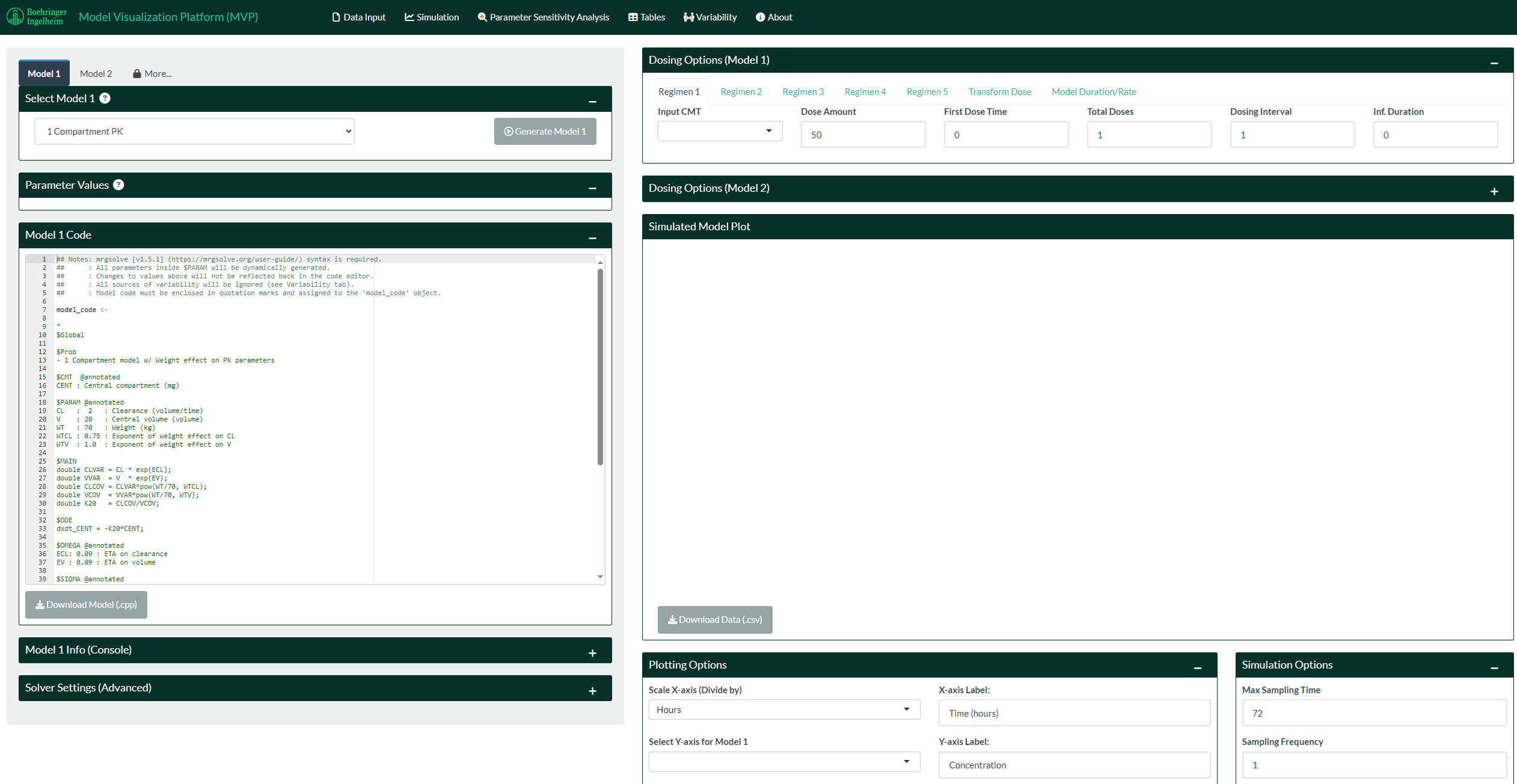
- Navigate to the “Select Model 1” box on the left hand side and
choose a template model from the drop-down list, or upload your own
.cpp file. You can also upload a document for automatic model
translation (more info at the bottom of the page).
- Once a model is selected or uploaded, you can make further changes
in the Code Editor below.
- You may also copy across your own model code by selecting the
“Blank Template” model. Note that when you switch models, all
changes are lost.
- Note that the entire model code is a string that is assigned
to the
model_code object, and initialized as model_object.
Therefore, if the model code contains quotation marks, the user
will have to remove those manually (or escape them using the back
slash, \) to avoid compilation errors.
- Click on the
Generate Model 1 button. If the model compiles, the
“Parameter Values” box will be populated, and a plot will show up on
the right hand side.
- If the model fails to compile, check the “Model Info (Console)”
box for the error message.
- Note that all sources of variability are ignored on this page
(
zero_re() from mrgsolve is applied). Navigate to the
Variability Page if you want to assess variability in populations
(see section below).
- Dosing is handled on the right hand side above the plot. Each tab
contains independent dosing schedules that will be combined
together. The “Transform Dose” tab contains more options that are
self-explanatory. The “Model Duration/Rate” tab provides options to
handle modeling duration or rate, which are done automatically by
default.
- Plotting options are on the right hand side below the plot. Most of
the options are self-explanatory, and the ones that require
clarification have a pop-up tooltip when you click on the input
selection. Once a dataset has been uploaded from the “Data Input”
page, it can be overlaid on top of the simulations (see section
below).
- Sampling times are configured on the right hand side below the plot
in the “Simulation Options” tab. A custom sampling schedule can be
defined (make sure to also check the “Use Custom Sampling Times”
checkbox).
- A second Model can be generated by repeating steps 1-5 by navigating
to the “Model 2” tab on the top left. The models are completely
separate in every aspect, making visual comparisons in dosing
regimens or model structures extremely easy.
- By default, the dosing regimens for Model 2 is collapsed for
appearance. Click on the “+” icon on the right hand side to expand
it.
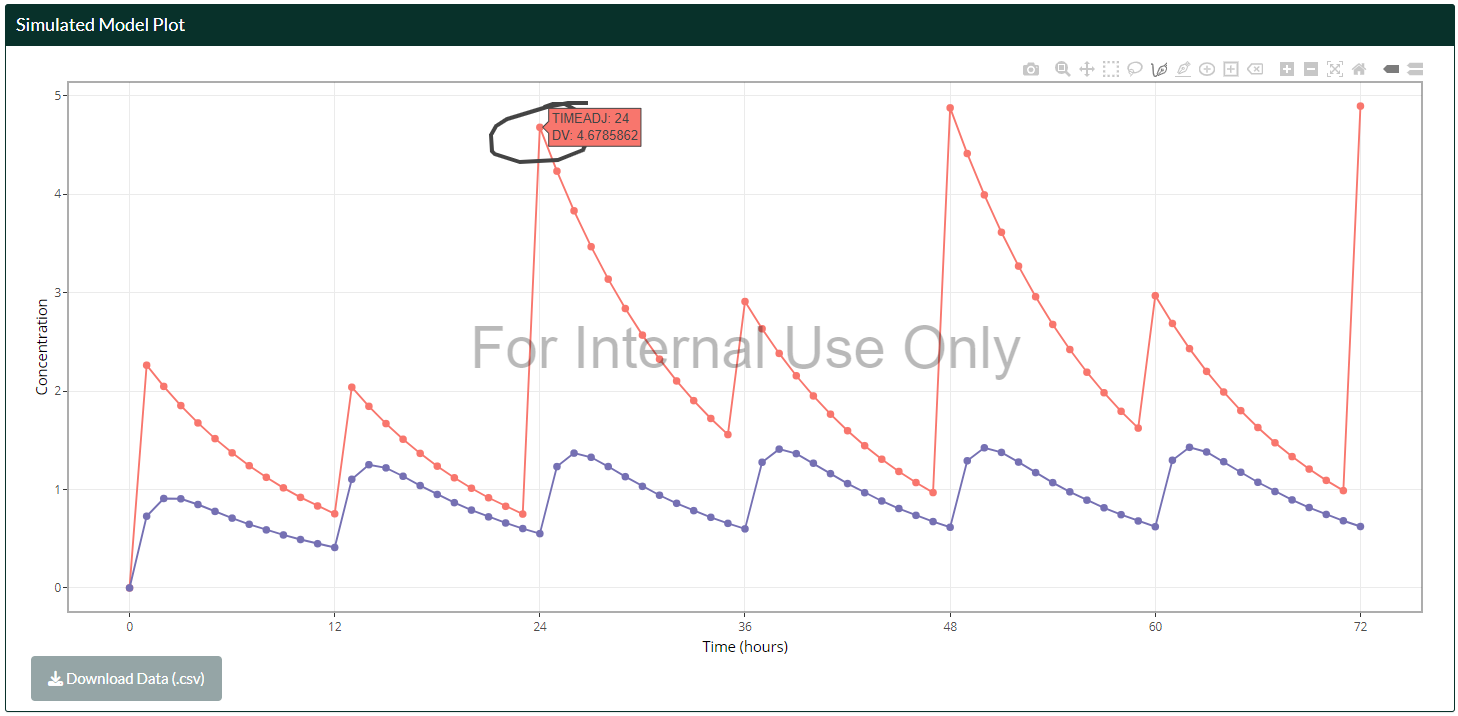
- In general, most plots can be interactive (using the
plotly
package), which allows zooming, panning, drawing etc, controlled
from the top right of the plot. The camera icon downloads the
current plot, based on the options set by the “Download Options” box
on the bottom right of the page. Tip: if plots take a long time to
load, turning off interactive plots may help with speeding
things up.
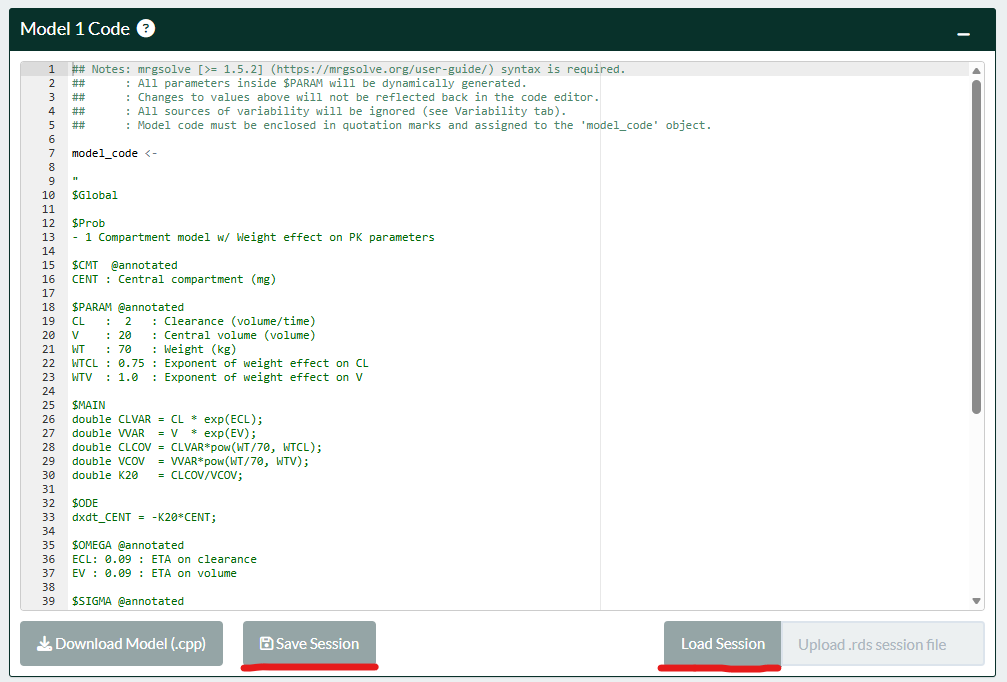
- All settings and options (including any uploaded datasets, see
below) can be saved and be restored at a later time for convenience,
with the “Save Session” button, located below the code editor.
- The “Download Model” button nearby can also be used to download
the entire model code, dosing info, and demographics (when
simulating with variability) together in a .zip bundle, included
with a simulation-ready R script for 100% reproducibility if
required.

Uploading Datasets and Data Exploration
Uploading NONMEM-formatted datasets (.csv) and tab-delimited text files
(.txt) is supported in the “Data Input” page. Some default cleaning
options are applied automatically from the “Built-in Dataset Cleaning
Options” box. Further filtering and cleaning may be applied in the code
editor on the left hand side. The dataset should have the “ID”, “TIME”,
and “DV” columns to be fully supported by the rest of the app (e.g. data
overlay). At minimum, only the “ID” column is required to support Data
Exploration in the Data Input page. If missing, the user may create /
rename these columns using the code editor.
- The filtered dataset (i.e. after passing through the code editor) is
shown on the right hand side table.
- Summary statistics of the data per ID is shown on the second sub tab
on the top right hand side.
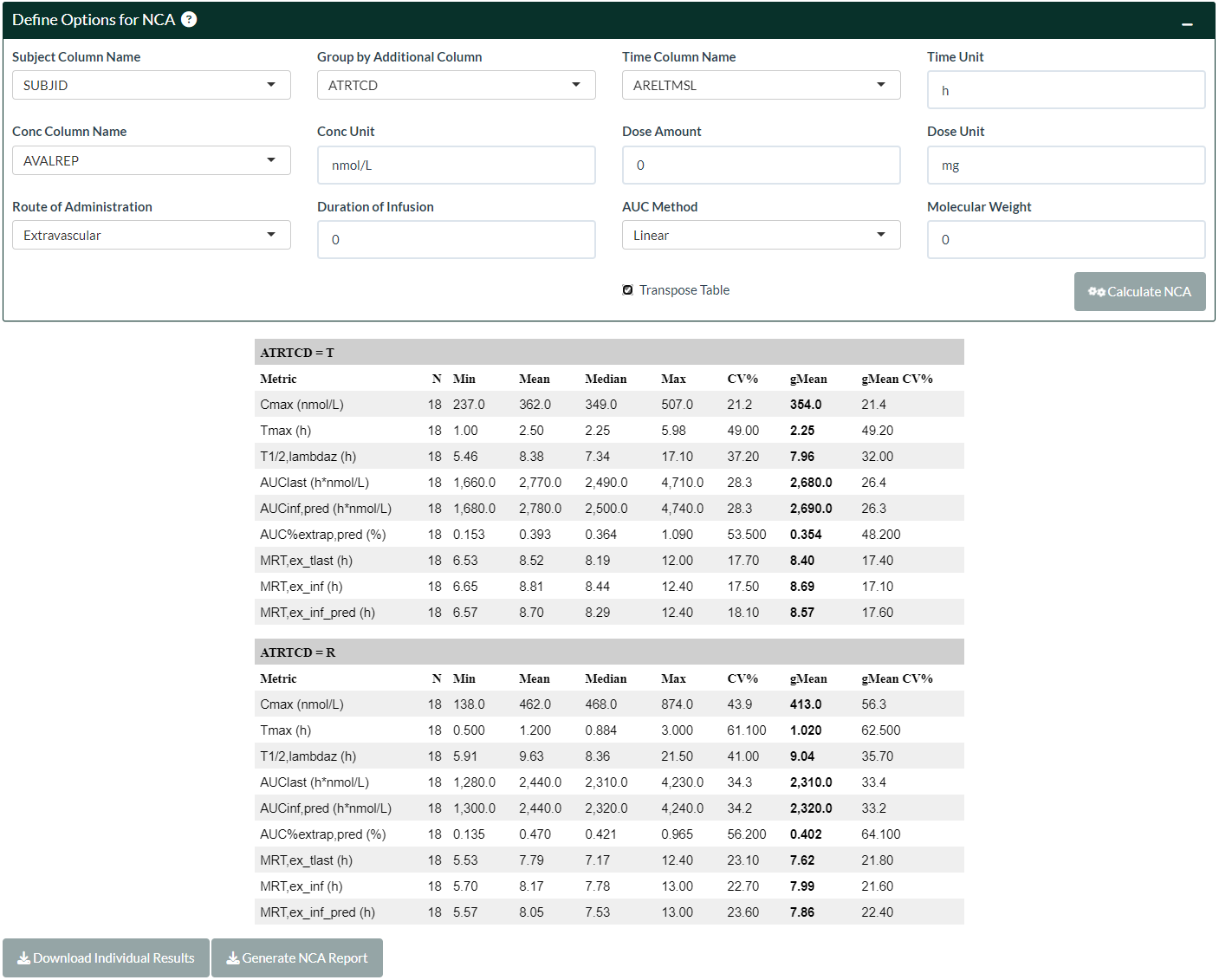
- Descriptive statistics (NCA) can be derived (supporting non-NONMEM
datasets) by defining the options and then clicking the “Calculate
NCA” button, from the “Descriptive Statistics” tab. Note that this
feature is experimental and assumes a single dose per subject only
for a single compartment. The user may need to filter their dataset
accordingly. The displayed table can be transposed if required.
Results and plots per subject can be downloaded by the buttons at
the bottom of the page.
- Quick data exploration are provided by the “General Plot”, “Ind.
Plot”, “Corr. Plot”, and “Covariate Histograms” tabs (tip: clicking
on the legend can toggle each subgroup on/off when the plot is
interactive):
General plots are flexible plots that can handle continuous/continuous,
continuous/discrete (Box plot option), and discrete/discrete (Box plot
option) types of data.
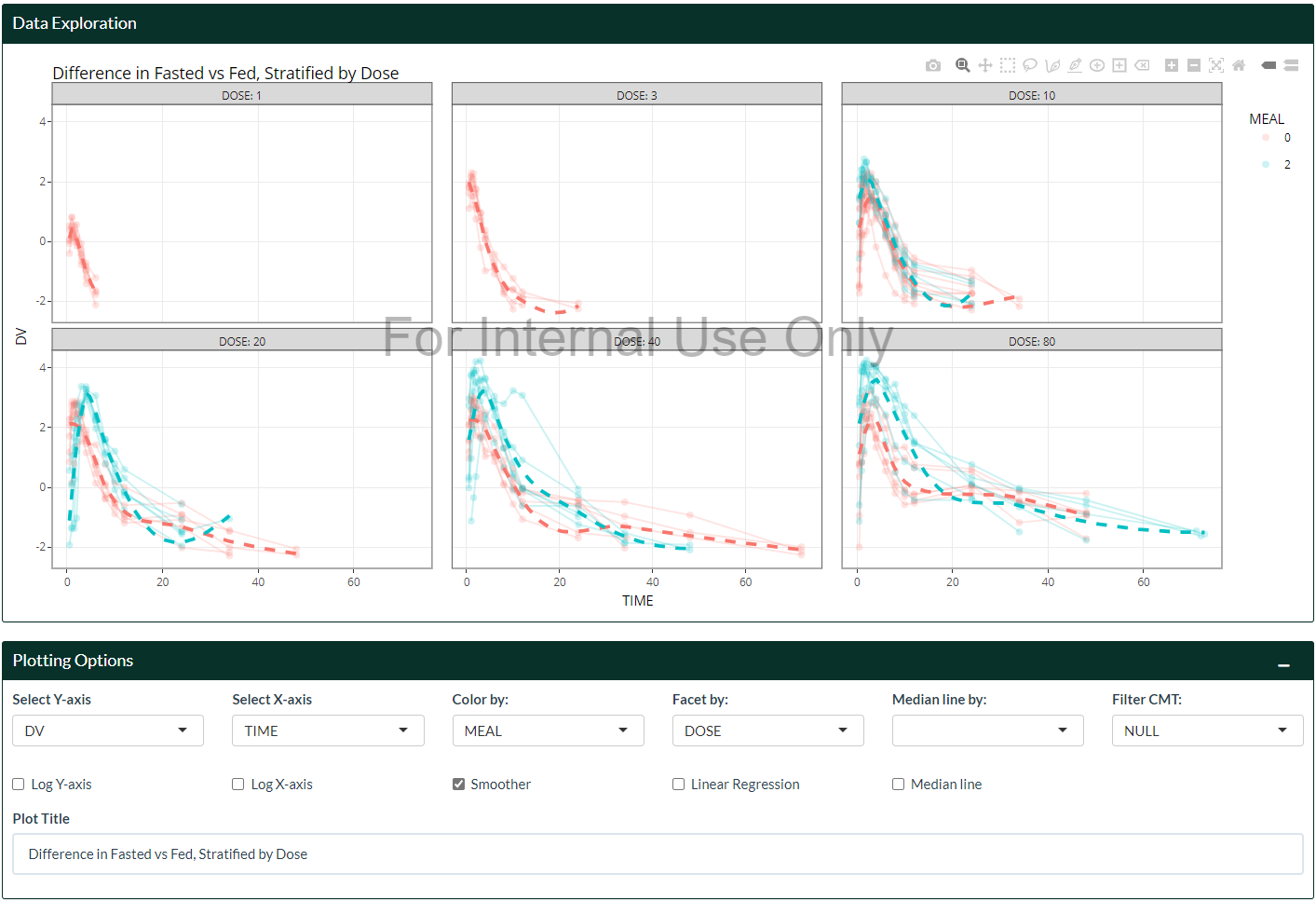
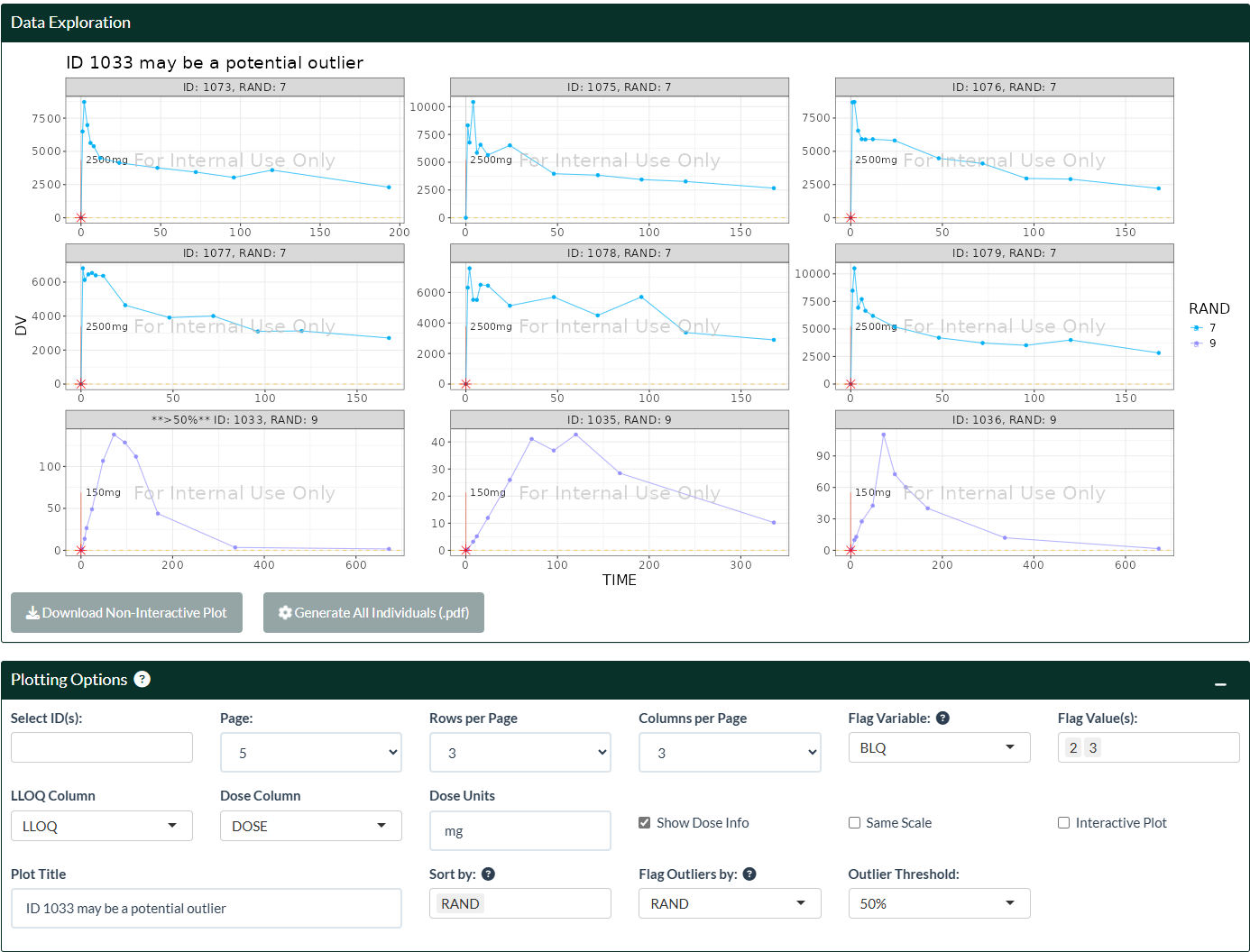
Settings from General Plots will be carried over to the “Ind. Plot”,
where users can explore individual profiles in more detail. Dosing
information (“EVID”, “ADDL”, “II”, “RATE” columns) can be inserted on
each plot when the Dose Column is provided. There are also options to
highlight values and automatically identify potential outliers according
to a stratification group. LLOQ information can also be inserted.
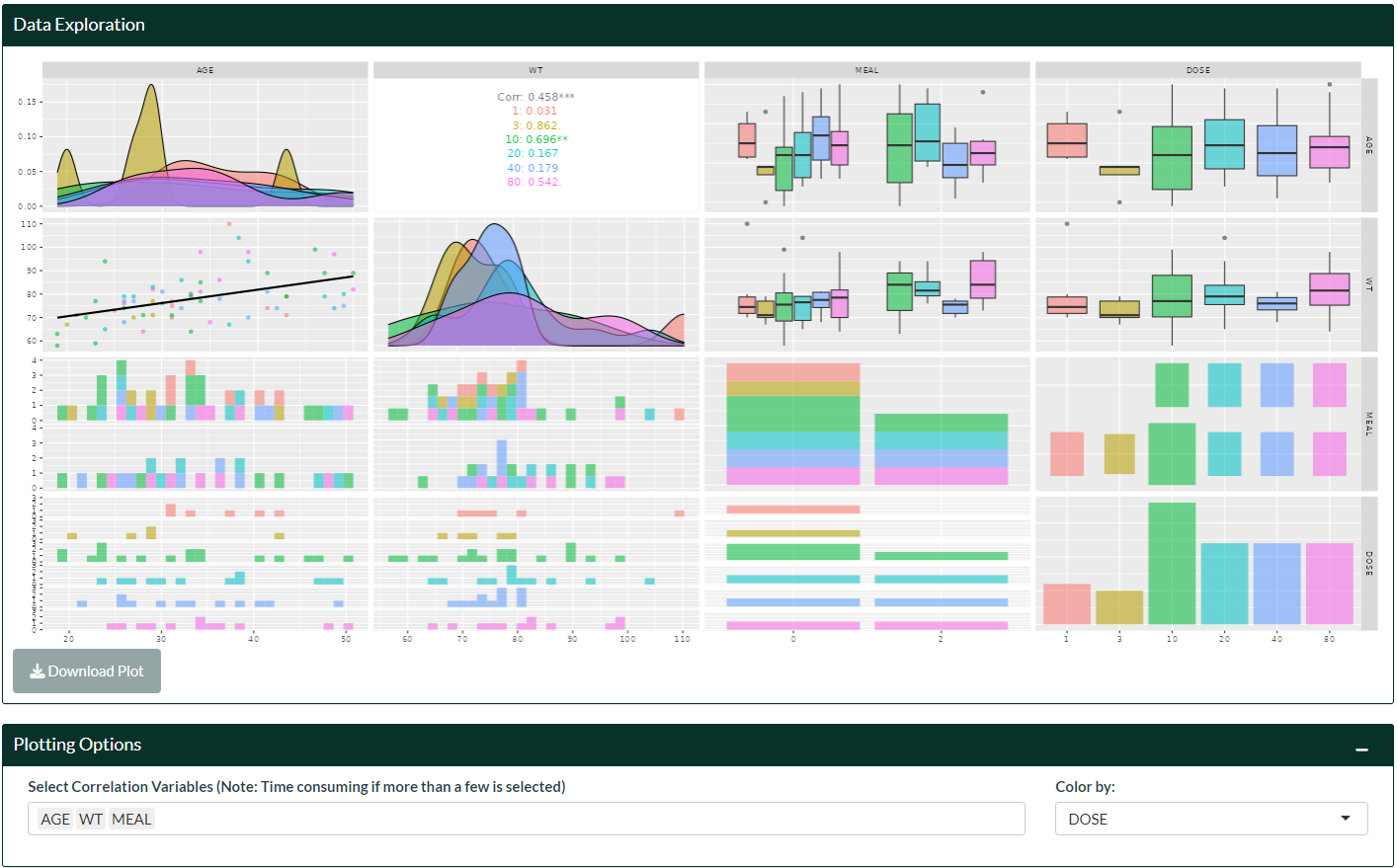
Correlation plots are grouped by ID and are useful to explore potential
correlations between covariates.
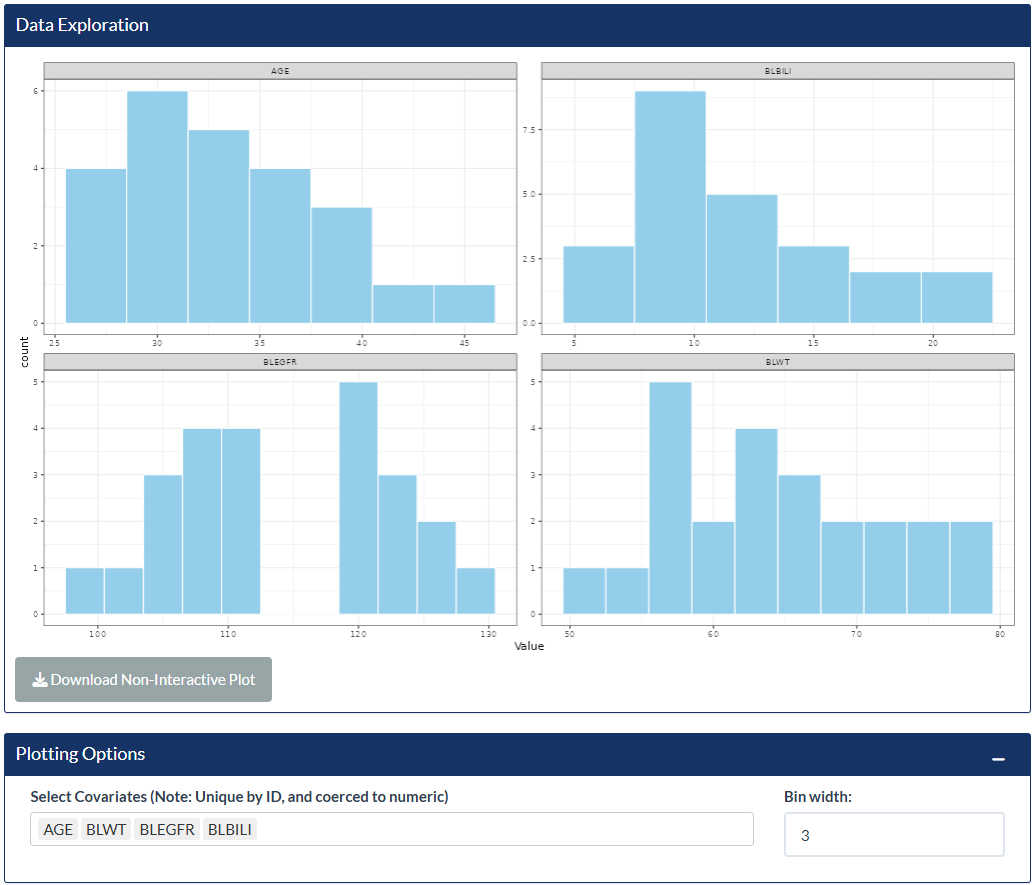
Covariate histogram plots are a quick way to check for outliers in the
datasets (plots are distinct by ID, which usually displays the
baseline).
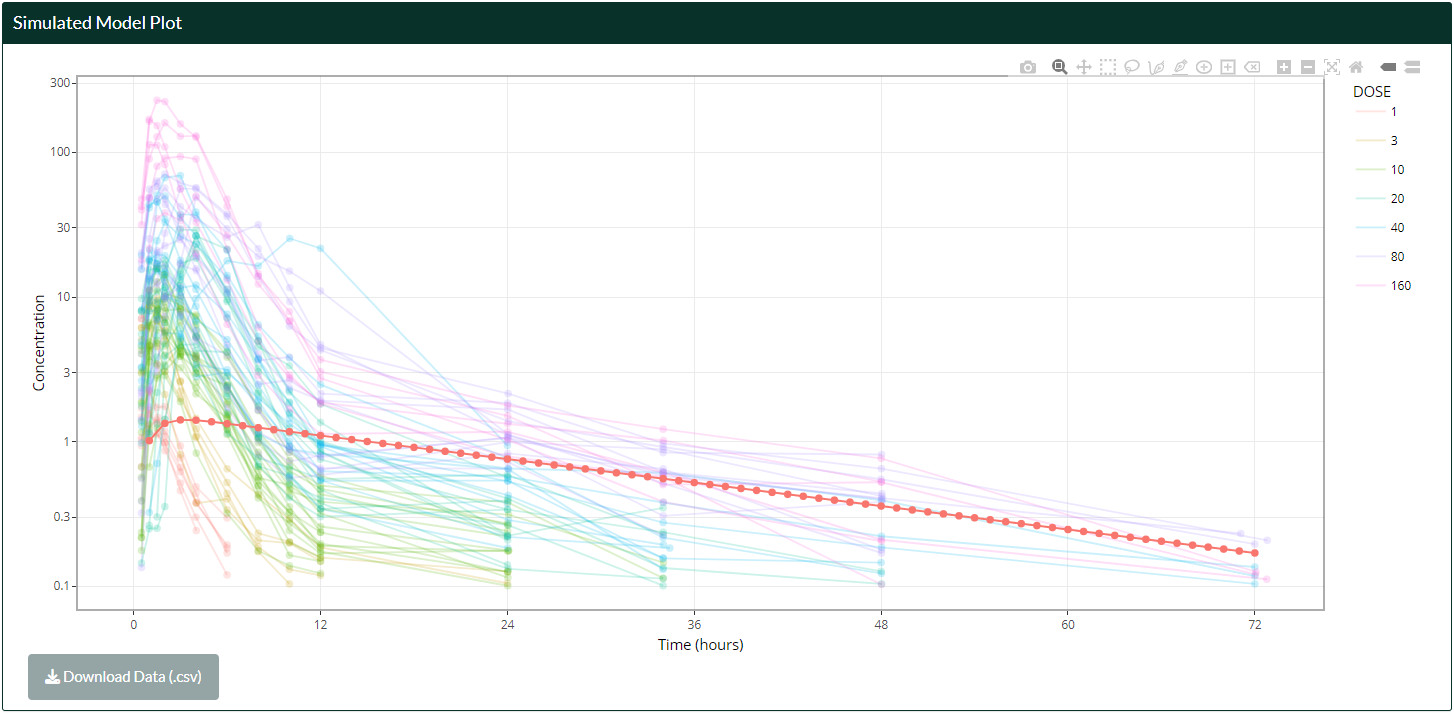
Note: once a dataset is uploaded, its display can be toggled on other
pages by checking the “Overlay Dataset” checkbox in the “Plotting
Options” in each respective page!
Parameter Sensitivity Analysis
After a model has been generated from the Simulation page, the impact of
perturbing parameter values can be assessed in the Parameter Sensitivity
Analysis. MVP makes this transition seamless by carrying across
previously defined model settings and making them available (i.e. in
$PARAM) for selection.
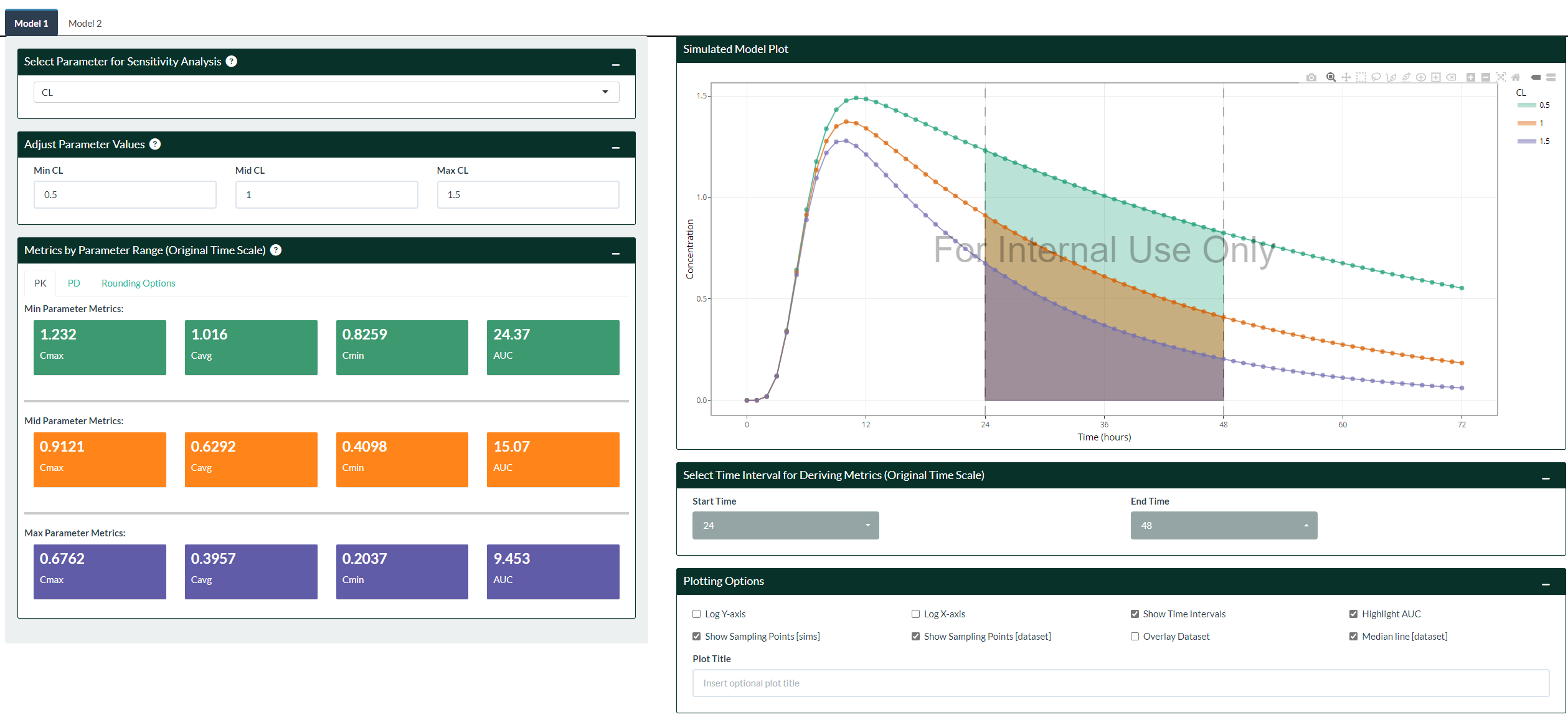
- Select a parameter of interest from the top left drop-down list.
- Adjust parameter values immediately below. By default, MVP provides
3 profiles (±50% of the original value, and the original value
itself). The user may further adjust the values manually as they see
fit.
- Changes are immediately shown on the plot on the right, and PK/PD
metrics are provided on the left page under each respective sub tab.
- If you have a PK/PD model, you may need to switch the Y-axis from
the Simulation page to display PD information (assuming your
default Y-axis is PK concentration).
- The rounding of the metrics can be changed in the “Rounding
Options” sub tab.
- The time interval to derive metrics can be adjusted in the “Select
Time Interval for Deriving Metrics” box, below the plot.
- Note that the original time scale is always used (if the user
has changed scaling by using the “Scale X-axis (Divide by)” option
from the Simulation page).
- Plotting and Download Options are similar to those in the Simulation
page.
- Simulations of the middle profile, in addition to its derived
metrics can be downloaded in the Table page.
Assessing All Structural Parameters
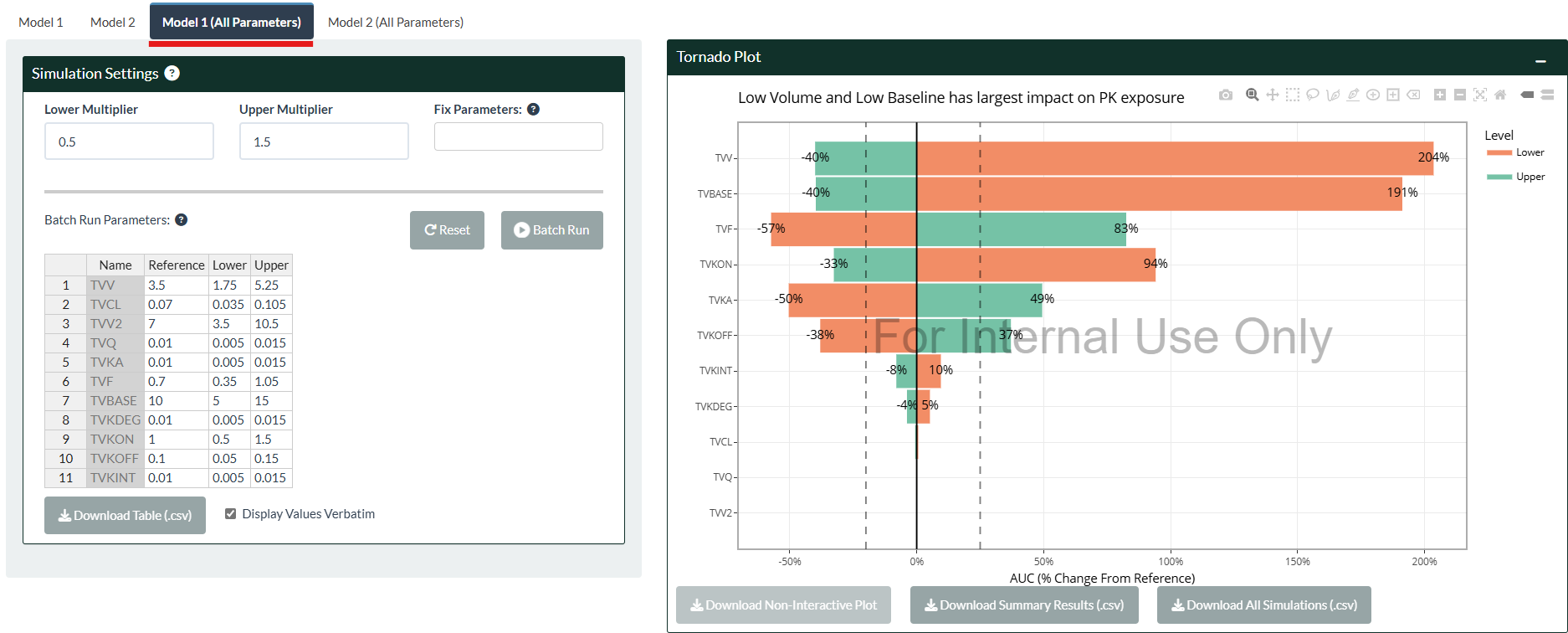
Batch run simulations (i.e. assessing all parameters at the same time)
can be generated from the “All Parameters” tab on the top-left side of
the page, with results available from just a single click and
visualized using Tornado Plots and Spider Plots. This feature is
particularly useful for complex models with up to hundreds of parameters
to rank parameters of relative importance, e.g. PBPK or QSP models.
- (Optional) Remove any parameters from the batch run using the “Fix
parameters” option on the top-left side.
- By default, all parameters are perturbed based on ±50% of the
original value, i.e. the reference model. Users may tweak the Lower
and Upper Multipliers to quickly pre-configure the range easily.
Each value can also be adjusted manually in the Batch Run Parameters
Table.
- As the Table is updated dynamically, users are recommended to
first modify the multipliers, then the reference values, and
lastly the lower/upper bounds, as required. Other edit orders
may unintentionally reset the values.
- Press the “Batch Run” button when ready. Each simulation will
substitute one of its parameters univariately, while the rest of the
parameters are unchanged based on the reference model (i.e. the
total number of simulations are 2 * each parameter (lower and
upper) + 1 (the reference model)).
- On the right hand side in the “Plotting Options”, select the
variable to summarize over (usually the PK/PD concentration
variable). Afterwards, choose the exposure metric of interest from
the “Select Metric” option (default metric is AUC, other supported
metrics are Cmax, Cavg, Cmin, Clast, Tmax, and Tmin).
- Other graphical options such as displaying in different scales,
effect size text labels, filtering parameters, and bioequivalence
(80% - 125%) visual guide are provided.
- A new set of Batch Runs should be generated whenever the Batch Run
Parameter Table is changed.
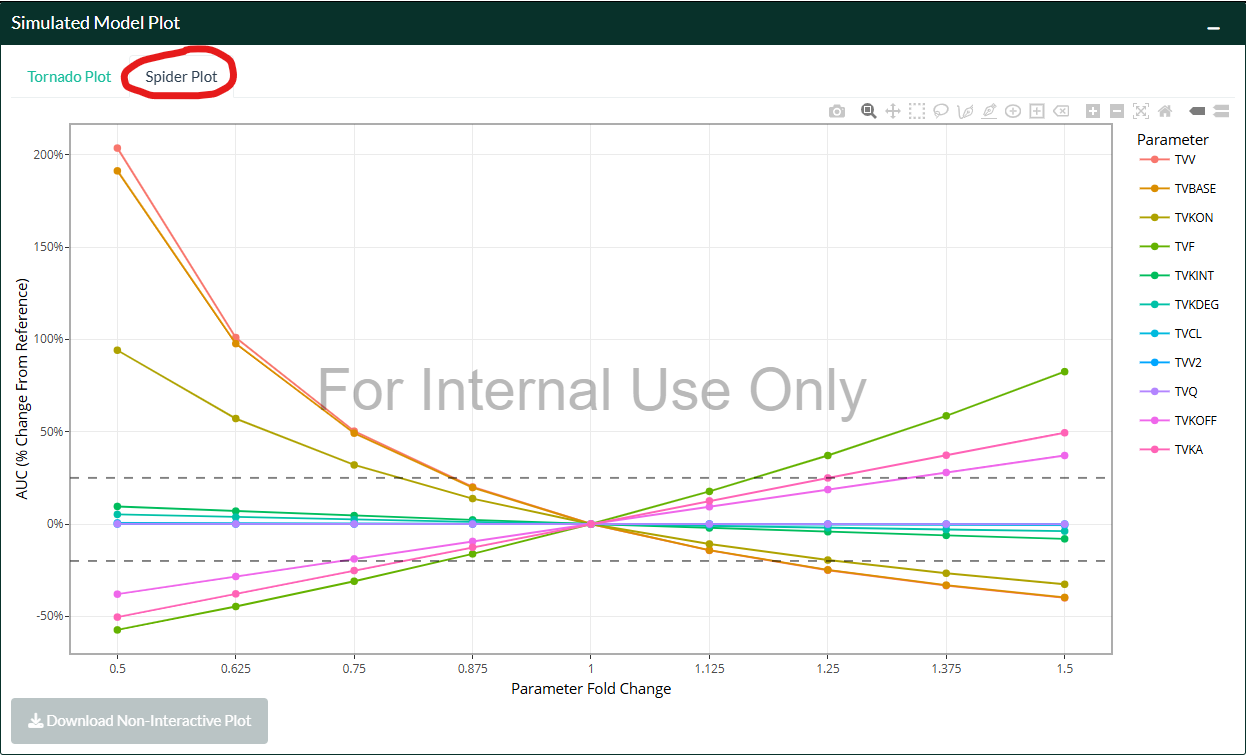
For spider plots (right hand side tab), make sure that the “Gradients”
option on the left hand side is checked. 6 additional simulations per
parameter will be inserted between the upper and lower bound to provide
better “coverage” by increasing the granularity when assessing parameter
sensitivity. If the user has large ranges between the upper and lower
bound, or has manually edited any parameter value, the “Normalize Fold
Change” option may be used for improved visuals.
Simulations with Variability
What makes MVP truly a joy to use is its ease in answering typical
questions such as:
- What are the predicted PK exposures in pediatrics?
- What are the predicted PK exposures within a certain weight range?
- What are the predicted PK exposures in patients with moderate to
severe renal impairment (or any other covariate where having a
distribution is desired)?
- What is the likelihood of maintaining PD response above a certain
threshold?
- …or a combination of the above questions together!
All of these questions can be handled in MVP in seconds, massively
reducing turnaround time from team discussions (or even doing this
live)!
Defining Population (Covariates)
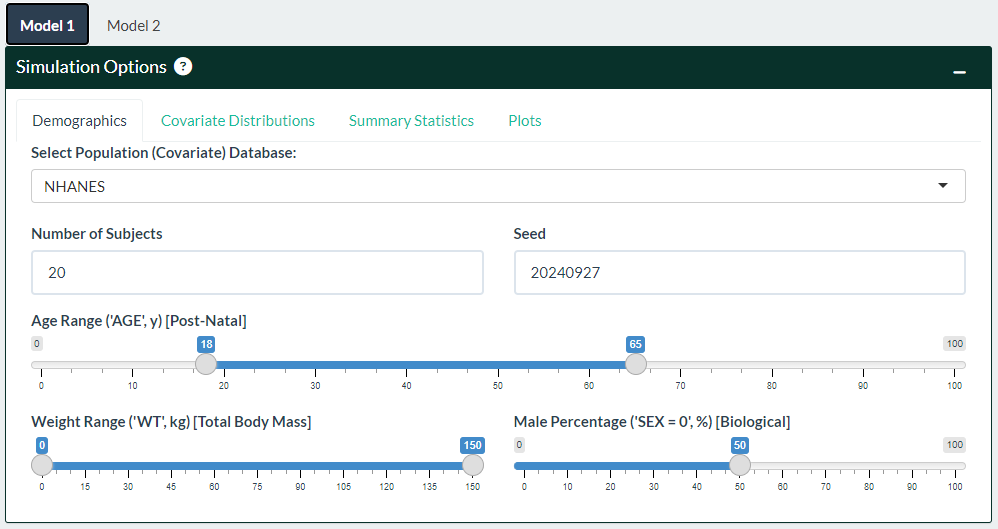
- External patient databases
(NHANES,
CDC, WHO) can be configured in the “Demographics” box
on the top left. Select a relevant database from the drop-down list,
or use “None” to only change the number of subjects being simulated.
- If the model code contains any of
AGE, WT, HT, BMI, or
BSA in its $PARAM section, its value will be replaced by
the subjects' value from the sampled database.
- Sampled demographics can be downloaded in the “Summary Statistics”
sub-tab if the user wants to use this to perform their own
simulations.
- Histogram of weight and age can be viewed in the “Plots” sub-tab.
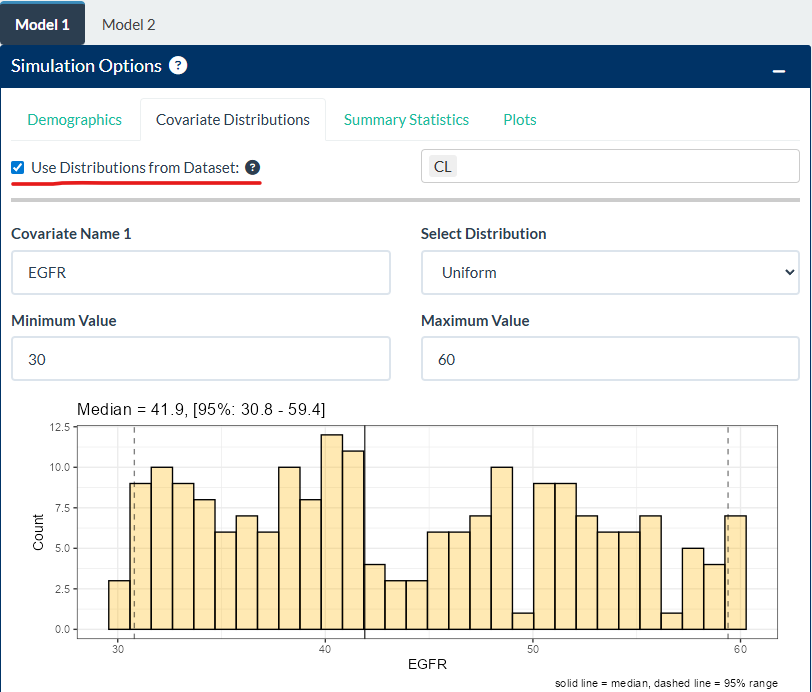
- Custom covariate distributions can be defined (e.g.
EGFR) and
inserted similarly together with the database shown in step 1). Up
to 3 unique covariate distributions are enabled.
- Normal, Log-normal, uniform, binary categorical distributions are
supported.
- Once defined, they will be made available in the “Summary
Statistics” sub tab and able to be downloaded.
- (Optional) If a dataset is uploaded, subject-level (i.e. baseline)
covariate distribution(s) or EBEs, e.g. individual
CL and/or
VC can be drawn from the dataset to replace the
corresponding parameter name from the model code.
- If the number of unique subjects from the dataset matches the
number of subjects to be simulated, sampling without replacement
will be used (i.e. a 1:1 substitution). Otherwise, sampling
with replacement will be used.
- Don’t forget to set the corresponding OMEGAs to 0 if you are
sampling EBEs from the dataset (see 'Assessing Variability'
section below).
- Tip: you may use the “Data Input” page’s code editor to rename
columns if required.
- When the simulations are generated, a popup dialog box will appear
on the lower right hand corner to notify the user the list of
covariates which found a match in the model code (thus are
replaced accordingly).
Assessing Variability
Both OMEGAs and SIGMAs, if it exists in the model, will be available for
the user to adjust on the bottom left hand side of the page. Once ready,
click the “Update Model” button to generate new simulations.
- There are built-in checks to ensure matrices are positive
semi-definite and non-negative, however the user should make sure that
values are sensible. The “Matrix Info” box below should match the
matrices - if not, that means the inputted matrices were invalid and the
matrices has reverted to its last known state.
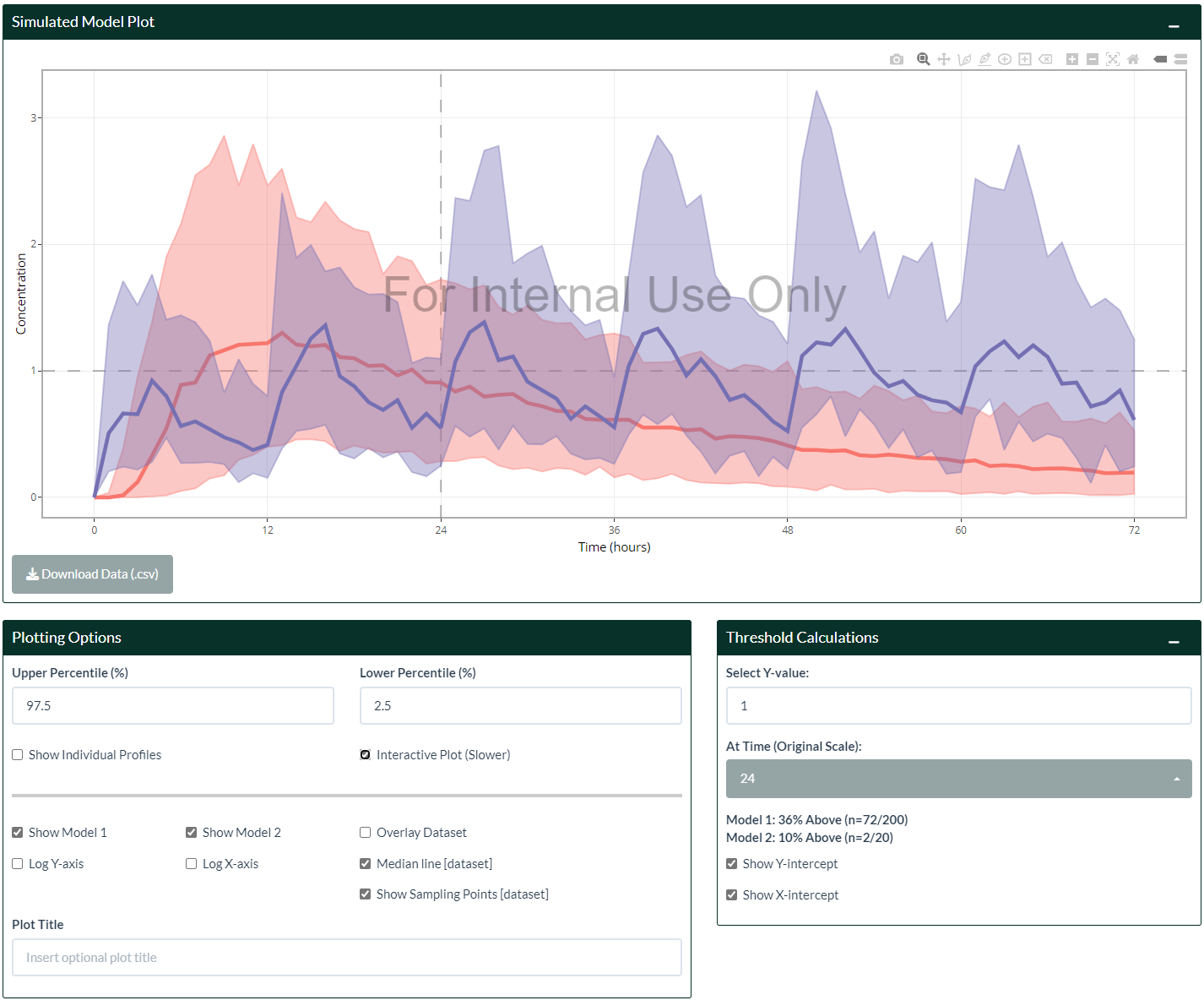
- A plot with variability should appear on the right after “Update
Model” has been pressed (note: any time the matrices are changed,
the user needs to click the “Update Model” for it to take effect).
- The display can be changed to either show percentile range or
individual profiles in the “Plotting Options”.
- Percentage of subjects above a certain value can be calculated in
the “Threshold Calculations” box on the right.
- By default, the last time is used. However this can be changed
using the “At Time (Original Scale)” option.
Comparing Exposure Differences
Summary of exposure metrics are readily available to be viewed, which is
handy when assessing differences in models, dosing regimens, and/or
demographics.
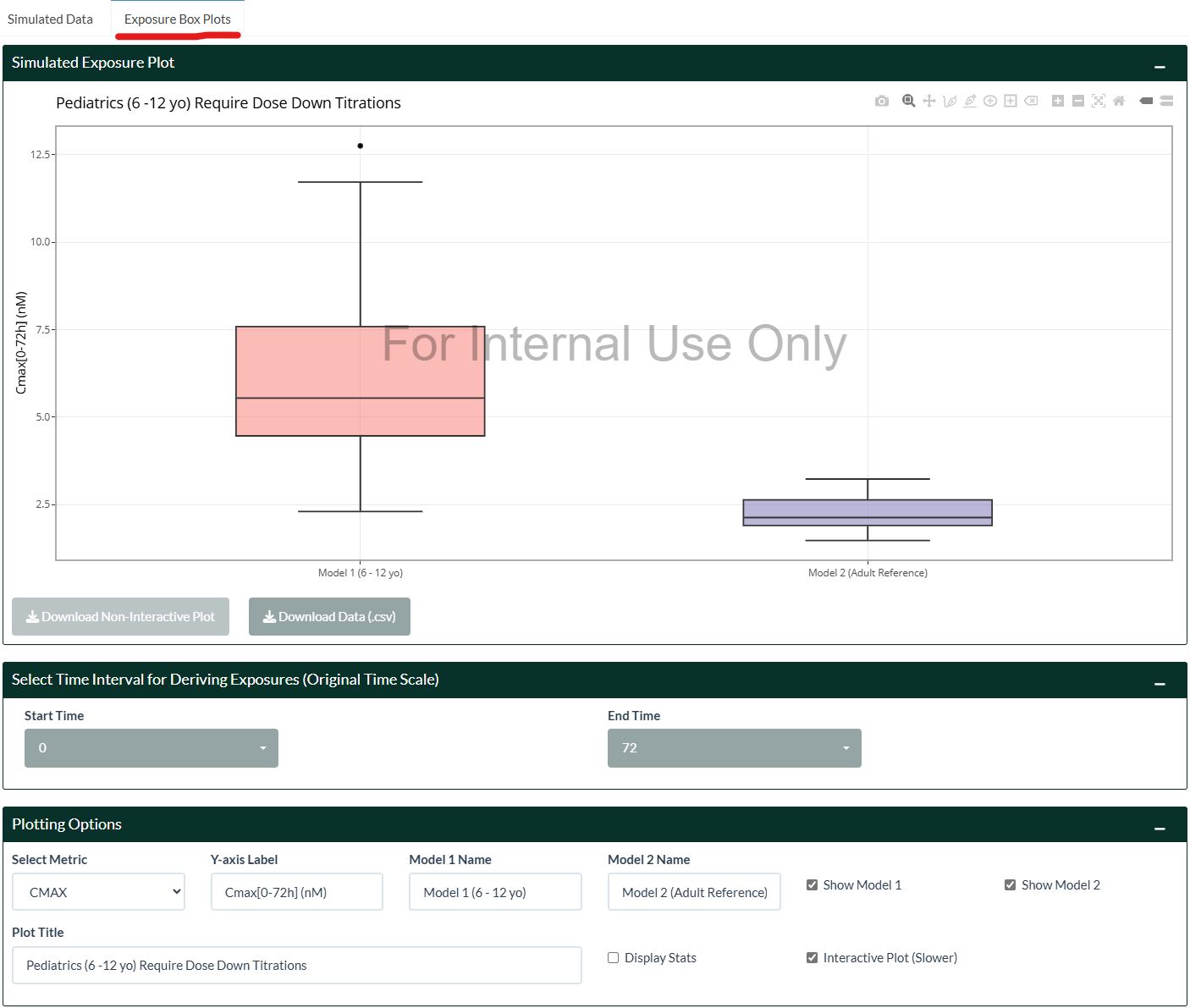
- Navigate to the “Exposure Box Plots” on the top right side of the
page.
- Select the time intervals of interest to derive metrics, which could
be relevant when deriving AUCtau,ss, for example. By default the
entire time range is used.
- Pick an exposure metric in the “Select Metric” option in the
“Plotting Options” box. Currently, AUC, Cmax, Cmin, Cavg, Clast,
Tmax, and Tmin are supported.
- Labels, titles, and the option to insert more summary statistics are
available to further customize the plot, allowing great
“off-the-shelf” graphics to be downloaded for presentations.
Saving and Restoring Sessions
The current model and settings can be saved as a .rds file to be stored
locally, and re-loaded at any time for convenience, which includes
support of any uploaded datasets and filtering options. The buttons are
located below the main code editor. Loading a session restores and runs
its model code and data-filtering code automatically, so only load
session files from sources you trust.
Reproducible Simulation Code
All relevant model information can be exported as a .zip bundle for
local execution to fully reproduce the simulations. A built-in R script
is also provided for ease of transfer into the user’s preferred
workflow, allowing it to be easily QC’d.
Extended Features and Vignettes
AI model translation
Please see the article on Automatic Model
Translation,
or access the vignette on this topic in R
(vignette("automatic-translation", package = "MVPapp")) for a short
guide on how to set up MVP to use generative AI models to translate any
document into mrgsolve, rxode2, or NONMEM code.
Providing external models and changing default settings
Please see the article on Supplying Passworded
Models,
or access the vignette on this topic in R
(vignette("supply-passwords", package = "MVPapp")) for instructions on
how to provide external models on App start-up.
Effective Exploratory Data Analysis (EDA)
Please see the article on Effective Exploratory Data Analysis
(EDA),
or access the vignette on this topic in R
(vignette("data-exploration", package = "MVPapp")) for a short guide
on using MVP to perform quick EDA.
Deploy MVP (e.g. Posit Connect, shinyapps.io)
mvp_app() takes the same arguments as run_mvp() but returns the app
instead of launching it. To deploy MVP, install MVPapp and use an
app.R file containing a single line, for example:
MVPapp::mvp_app(authentication_code = "some_password")
The deployment then records the installed MVPapp version like any
other package dependency.
Company branding
For a company deployment, the title, colour, logo and favicon can be set at launch without editing any package files. All arguments are optional; the default (NULL) keeps the standard look.
MVPapp::mvp_app(
brand_color = "#F36633",
brand_logo = "path/to/company_logo.png",
brand_favicon = "path/to/favicon.png",
page_title = "Company Model Visualization Platform"
)
Image files are read from where they are (they do not need to be inside the package) and a web URL also works. White or black text is chosen automatically for readability on brand_color; use brand_text_color to override it.
Sources for patient databases
The raw data and code used for deriving the populations used in MVP for
the NHANES, CDC, and WHO databases are available inside the data-raw
folder on Github (note: not included as part of the R-package).
Related Publication
The design aspects of MVP are further discussed in this publication in
CPT:PSP,
which you may use for citation purposes.